Think terahertz therapy is only for high-tech labs and risky experiments? Think again. Terahertz (one trillion hertz) devices give a gentle warming pulse, like a soft sunrise waking your cells. When you follow a few clear steps, they’re surprisingly easy to use.
This short guide walks you through the basics so you can set up your device safely and simply. Start with quick safety checks, then unpack and do a visual inspection. Next comes grounding and power hookup, followed by calibration (setting the device to the right output) and wand testing (the handheld applicator). Wait, let me clarify that the wand is just the part you hold against your body.
You’ll finish with calm confidence and practical know-how. Have you ever felt tension melt away after a warm, focused touch? Oh, and here’s a neat tip. Keep a simple session log so you can track what helps you most. Relax. Breathe.
Getting Started with Your Terahertz Therapy Device

Before you power anything up, a few quick safety steps to keep things calm and simple:
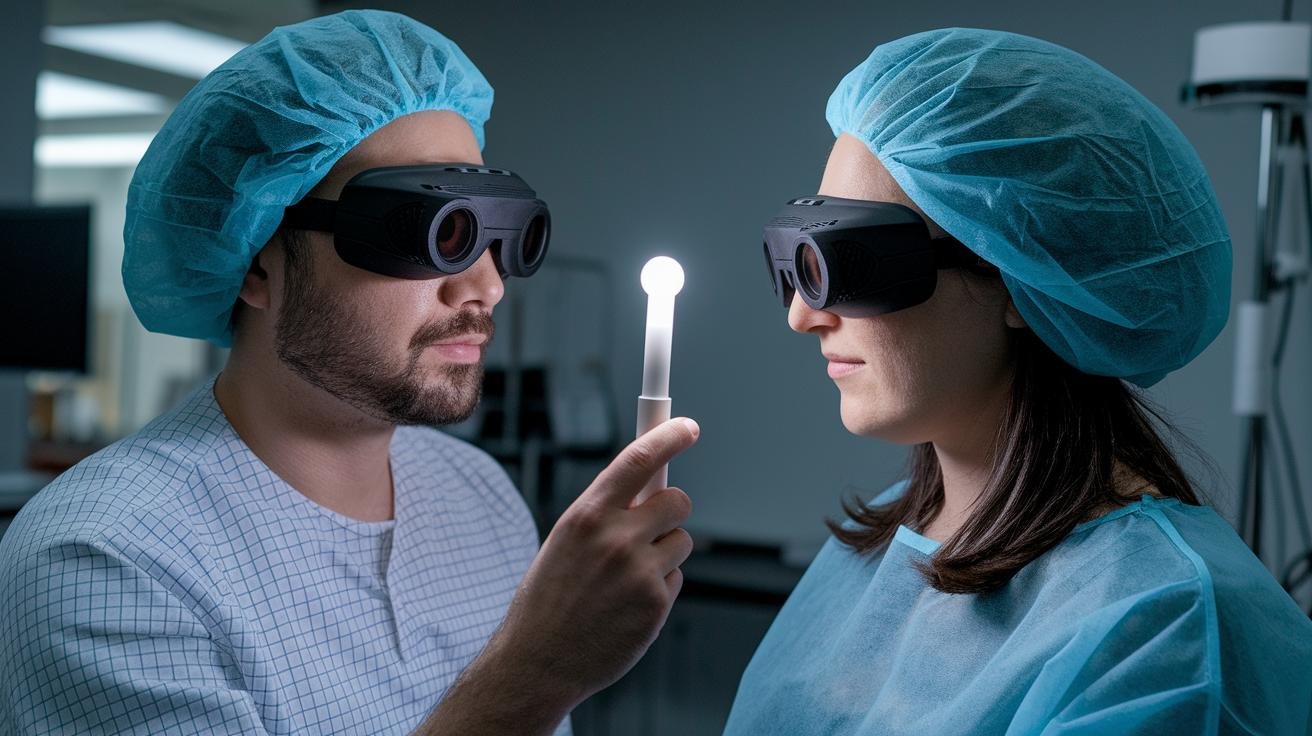
- Wear certified protective eyewear before powering up.
- Clear the work area of clutter and any reflective surfaces.
- Verify the emergency shutdown works (press and hold Stop).
- Read the quick-start safety card and the terahertz therapy device user guide first.
- Keep the wand away from your eyes and from implanted medical devices; keep a safe distance.
- Make sure grounding and power cords are intact and routed away from walkways.
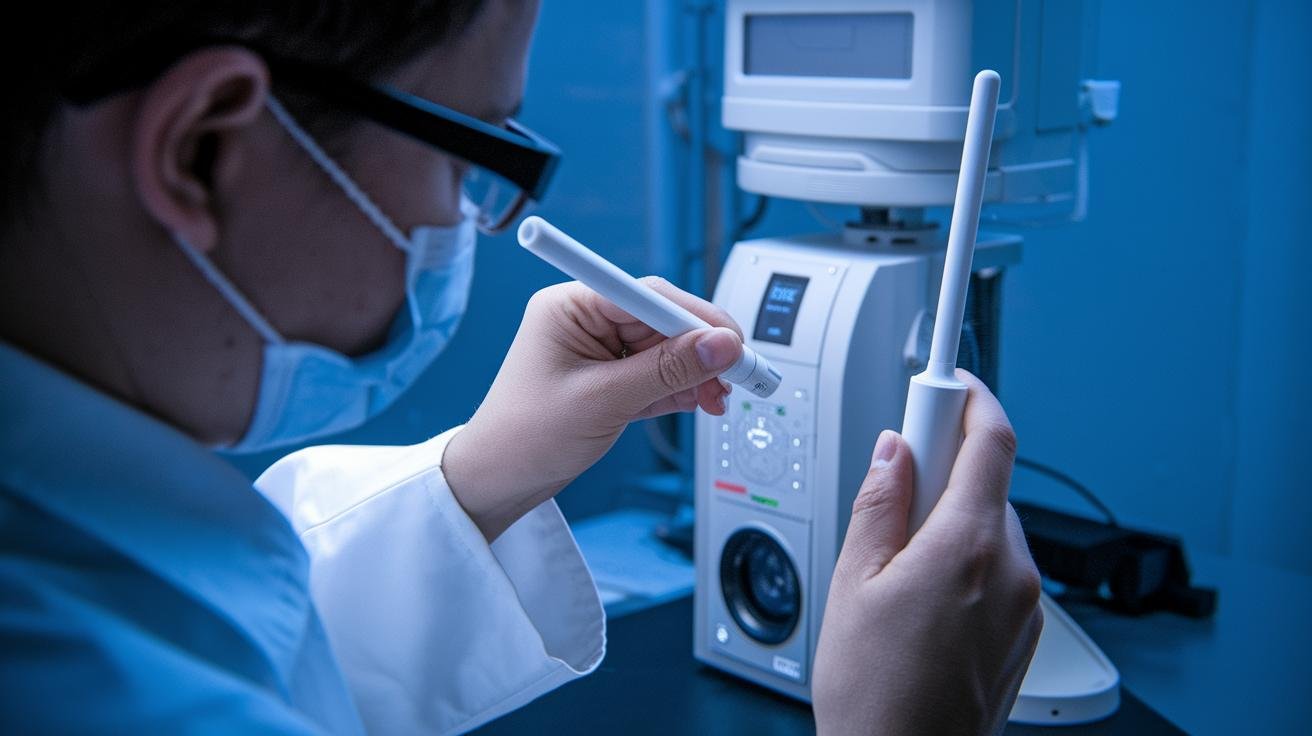
This guide walks you through the main unit, the handheld wand, the LCD display, the calibration pad, and the emergency stop interlock. The main unit holds the power and controls. The wand emits terahertz (one trillion hertz) frequencies and a gentle warmth, like a soft sunrise on your skin. The LCD shows modes and timers. You’ll also get an annotated diagram set so you can point to a part and know its name.
When you unpack, check the box for dents or crushed corners and open it slowly. Lay accessories out on a clean cloth and match them to the packing list in the user guide. Test-fit the wand into its holder and inspect all cables for exposed wires. Do an initial skin test on a small area like the back of your hand or forearm to feel the gentle warming. If anything is missing or damaged, contact support before you set up.
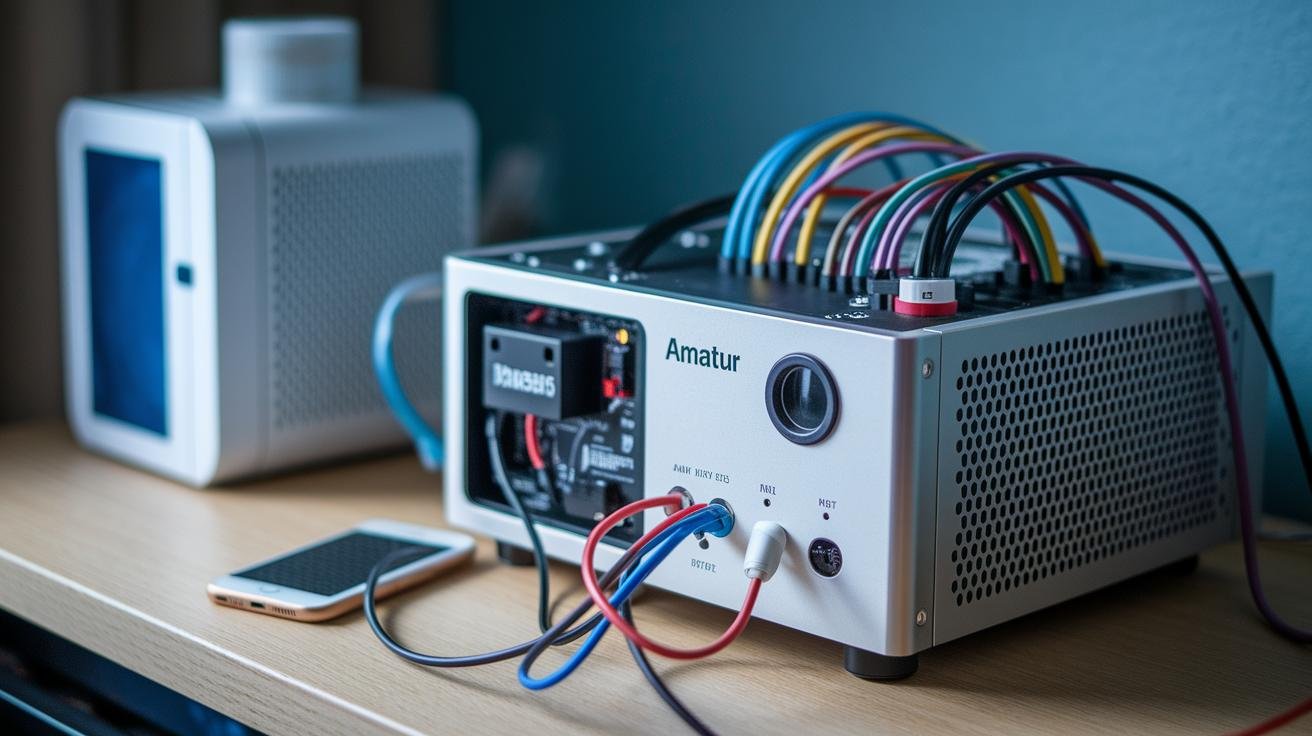
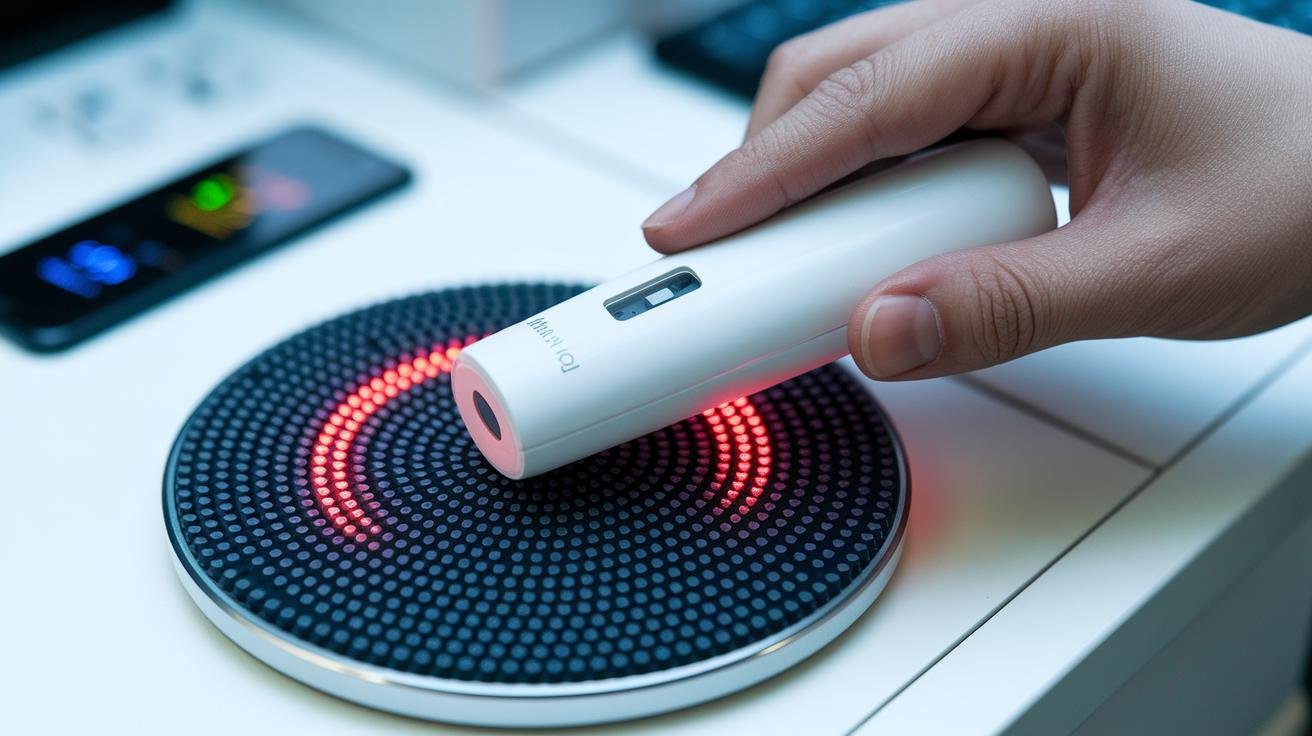
To connect power, plug the supplied grounded cable into a dedicated outlet and route the cord away from doors and busy paths. Confirm the fuse status on the power module before you switch on. After power-on, enter calibration mode and place the wand on the calibration pad. The device will run an auto-calibration, confirm baseline output, and save a factory profile. Finish the setup checklist in the user guide, and see 如何使用太赫茲治療棒 for handy handheld tips.
Detailed Setup Instructions and Component Identification Chart

Installation / Mechanical Assembly
- Start by attaching the wand holder to the base plate. Line up the dowel pins, hand-tighten the screws, then give each a quarter turn with the driver so nothing sits loose. Feel the fit, everything should sit snug, not forced.
- Fasten the base to the main unit using the four marked mounting holes. Use the supplied washers and tighten each screw evenly to prevent wobble or tilt.
- Mount the display module on its bracket and snap the ribbon connector into the interface socket. You’ll hear a gentle click when it’s seated correctly, trust that little sound.
- Route the wand cable through the holder clip and the rear cable channel. Secure the strain-relief point with the small cable tie so the cord won’t tug at connectors during use.
Use this exact phrasing when giving assembly directions:
“Attach the wand holder to the base plate. Line up the dowel pins, hand-tighten the screws, then give each a quarter turn with the driver so nothing sits loose.”
Power Connection Details
Before plugging in, confirm the unit’s serial label matches the power module rating on the power supply. Check the inline fuse carrier (the small fuse holder on the supply); the fuse must match the value stamped on the label. If the fuse is wrong, don’t power up, replace it first.
Plug the three-prong grounded connector into a dedicated outlet with a good ground. Have an outlet tester? Great, use it to verify the ground. If you need extra reach, use a heavy-duty, grounded extension cord rated for medical or industrial loads and don’t coil excess cable. Coiling can trap heat or cause interference.
When routing cables, use the rear cable clips and leave a gentle loop of slack so cords don’t cross doorways or get pinched. Secure the wand cable at the strain-relief so normal movement won’t pull on the connectors. Oh, and avoid running power cords under mats or behind heaters.
See Section 3 for a full control panel walkthrough covering every button, LED, and menu item.
Control Panel Walkthrough and Operation Manual Overview

The control panel is your command center – a neat cluster of switches, buttons, and a soft-glowing LCD (screen) that shows session mode, time, and output percent. The layout puts safety controls on the left, session controls in the middle, and navigation keys right under the screen so your hand moves naturally from one control to the next. Think of it like steering a small craft: simple levers and a clear display help keep things calm.
- Power switch: turns the main power on or off and wakes the LCD so you can access the menus.
- Emergency Stop: cuts output immediately and sends the device to a safe standby state.
- Start/Stop: starts or ends the active therapy session without changing your saved presets.
- Intensity + / −: raises or lowers output in clear percentage steps shown on the screen.
- Timer Set: choose session length (5 to 30 minutes) and confirm with the Select key.
- Mode Selector: cycles through session modes and loads saved user profiles from the User menu.
- Navigation keys (Scroll, Select, Back) and LED trio: green = status, red = error, amber = calibration alert.
Navigating the LCD menus is gentle and predictable. Scroll to pick a session mode, press Select to set intensity or time, then press Back to return to the main screen. Saved profiles sit under the User menu so you can call up a preferred setting without re-entering parameters.
Oh, and when calibration runs, the amber LED blinks while the screen shows progress. If something feels off, consult the operation manual for the full error code list and step-by-step troubleshooting guidance. Relax. You’ll get the hang of it quickly.
Calibration, Intensity Adjustment, and Timer Configuration

Start here so your sessions are steady and comfortable. Think of this as a quick checklist to make sure the device is ready and the output feels right.
Procedure – Calibration, Intensity, and Timer
Before every session, check:
- Verify calibration status (look for “CAL OK” or a recent date/time on the screen).
- Confirm the intensity percent (for example, “Intensity: 45%”).
- Check the timer minutes shown (for example, “Timer: 20 min”).
Calibration – numbered steps:
- Place the wand tip flat and centered on the calibration pad. Make sure it sits evenly.
- Power on, press Menu, scroll to Calibration Mode, then press Select.
- Let the unit run its auto-check; the amber LED (indicator light) will blink while it measures the baseline.
- If prompted, accept the displayed baseline. If the reading jumps, retry once.
- When the screen shows Calibration Complete, remove the wand. If the device offers to save a factory profile, go ahead and save it.
Setting intensity and session length – numbered steps:
- Press Start/Stop to wake the panel, then pick a session mode with the Mode Selector.
- Use Intensity + or – (or the dial) to set output. Watch the LCD (screen) for the percent value so you know what you’re sending.
- Press Timer Set, scroll to the desired length (5–30 minutes), then press Confirm.
- Load a saved user profile for preset intensity and time if you like, then press Start to begin.
Small tip: if something feels off, stop, recheck calibration, and try a lower intensity. Relax. Breathe.
Treatment Protocols, Patient Positioning, and Safety Interlocks

Start with short, steady sessions. If you’re new, try 5 to 10 minutes to see how your body responds. Typical treatments run 10 to 30 minutes per area, two to three times a week for maintenance or recovery. Listen to your body; if you feel unusual warmth or notice redness that doesn’t fade, stop and rest.
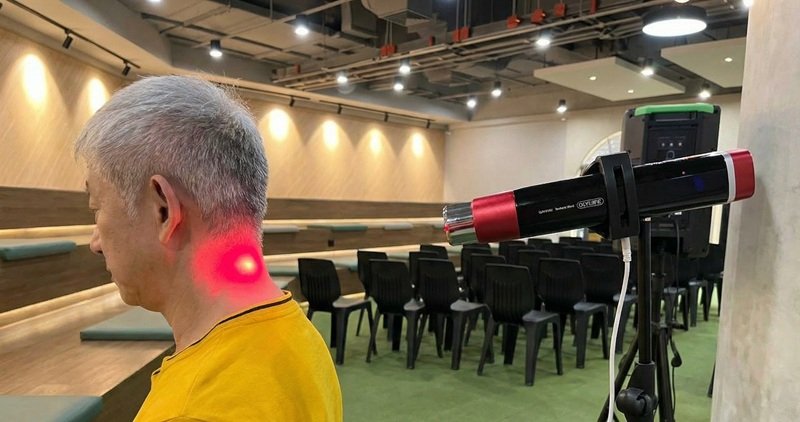
- Keep the wand 8 to 12 inches from the skin for broad-area passes. That distance gives a gentle warmth, like the morning sun, without creating hot spots.
- Hold the wand roughly perpendicular to the treatment surface and move in slow, circular strokes so the energy spreads evenly. Think of it like a soft massage.
- For focused work, hover a bit closer but cut the time down to avoid irritation. Shorter, targeted bursts work better than long, close exposure.
- Wear certified protective eyewear any time the unit is active, and never aim the wand toward the eyes. Safety first.
- Don’t treat open wounds, active rashes, or areas near implanted electrical devices such as pacemakers.
- Start at low intensity and short durations, then raise output gradually across sessions as you get comfortable.
Emergency Shutdown Instructions
The safety interlocks are made to stop therapy quickly and quietly. If the wand lifts from its holder, a safety cover opens, or the system senses something abnormal, the output cuts and the device moves to a safe standby. To trigger an emergency stop yourself, press and hold the Stop button for three seconds; everything will go silent and the LCD will return to the main screen. After any interlock event, wait for the unit to show READY and run a quick calibration check before you restart.
Stray beams can bounce off shiny surfaces and reach sensitive areas. Keep mirrors, metal trays, and glass out of the treatment zone, angle the wand so beams point toward the tissue you’re treating, and ask bystanders and pets to stay well away while a session runs. Oh, and a neat trick: cover any reflective items with a towel if you can’t move them.
Maintenance Schedule, Cleaning Procedures, and Lens Care

Routine care keeps your unit working well and feeling nice to use. Wipe the housing after heavy use, sterilize the wand tip after every session, check cables monthly, swap the inline filter cartridge every six months or around 500 hours, and clean the lens gently with lens tissue and an optical cleaner. Small steps, big payoff.
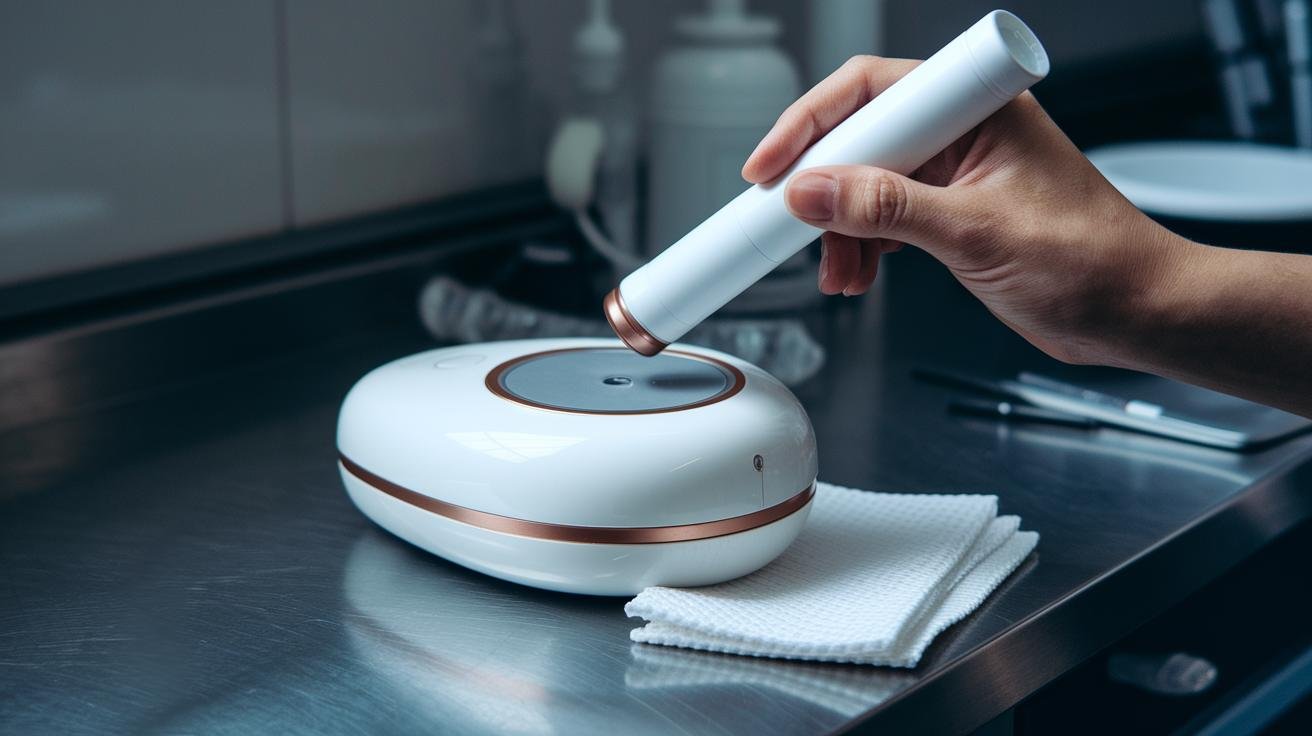
Clean the housing with a soft, lint-free cloth dampened with 70% isopropyl (isopropyl alcohol). Don’t spray cleaners directly into vents or seams. Wait, let me clarify that: dampen the cloth first, then wipe. Move slowly and feel for any sticky spots; a second wipe usually clears them.
Sterilize the wand tip right after each session. Use a single-use alcohol wipe or the provided disinfectant pad. Let the wand air-dry before you return it to the holder. Oh, and here’s a neat trick: if it feels tacky, give it one more gentle wipe.
Inspect cables and connectors once a month. Look for frayed insulation, stiff sections, or loose pins. If something looks off, tag it and contact support before using the unit. Better safe than sorry.
Replace the inline filter cartridge (air filter) every six months or when the runtime counter hits about 500 hours. Keep a small log of the date and hours at each replacement so you don’t forget. Simple records save headaches later.
Lens care is delicate. Use lens tissue plus a mild optical cleaner and wipe in soft circular strokes. Never scrub with abrasive cloths or paper towels. Don’t touch the glass with your fingers; oils can make hotspots.
Store the device somewhere dry and stable at 15 to 30 °C (59 to 86 °F), in its padded case or a cabinet. Remove the wand from the holder, wrap cords loosely, and keep the original packing if you’re planning longer storage or travel.
| Task | 頻率 |
|---|---|
| Cleaning (housing & wand tip) | After heavy use; wand tip sterilize after each session |
| Inspection (cables & connectors) | Monthly |
| Filter replacement | Every 6 months or about 500 hours |
| Lens care | As needed; check before each focused session |
Troubleshooting Common Errors, Reset Procedures, and Support Contacts

If your device is acting up, start with a few simple checks before you call for help. These quick steps often fix the problem and save time.
- Check the power first. Make sure the three-prong plug is fully seated. Try a different, known-good outlet. Look for blown breakers or tripped outlet testers.
- Inspect the inline fuse (a small replaceable safety fuse) and the fuse carrier on the power module. If the fuse is blown, replace it with the exact type stamped on the label before trying the unit again.
- Soft reset for frozen screens or odd behavior: power off, unplug for 10 seconds, plug back in, then power on. If it still acts up, press and hold Start + Stop for 5 seconds to start the device reset sequence.
- For erratic output, rerun the auto-calibration (auto-calibration is the device’s self-check). Place the wand on the calibration pad and choose Calibration Mode. If calibration is unstable or keeps failing, note any on-screen code and stop using the unit.
- If the unit feels very hot, smells like something burning, you see smoke, or E01 appears on-screen, power off immediately, unplug, and do not use the unit until a technician inspects it. Safety first.
| Error Code | Description |
|---|---|
| E01 | Overheat detected – system cut power; manual inspection required |
| E02 | Calibration fail – baseline not stable; retry calibration or contact support |
For technical help, email support@manufacturer.com or call 1-800-123-4567. When you contact support, have your unit serial number and the exact error code or a clear description of the behavior ready. For parts and warranty claims use the warranty portal or contact the support team, have photos of the unit, purchase date, and any shipping damage details handy when you request parts or service.
Software Interface Navigation and Firmware Upgrade Process

Before you start, make sure your PC is running Windows 10 or later, you have a free USB-A port (the standard rectangular USB plug), and you’re signed in with admin rights. Grab the latest driver package from the device maker and a spare USB thumb drive formatted as FAT32 (a common file system). Power the device and wake the LCD so you can watch the progress bar during updates. Simple prep helps everything go smoother.
A few small habits save headaches.
- Save a named profile before you change settings so you can go back to what worked.
- Use parameter presets for common sessions to speed setup and cut down on fiddling.
- Check the data log after sessions to spot trends in output, runtime, or warnings.
- When you export profiles to USB, give them clear names and dates so versions don’t get mixed up.
- Move through menus slowly: scroll, select, then confirm. Accidental changes happen fast, but they’re easy to undo if you’ve saved a profile.
Step-by-step firmware update
- Export current settings. Plug a USB drive into the front port, go to User → Backup, choose a file name, and export the profile. Wait for the Export Complete message before you remove the drive.
- Prepare the updater. Download the firmware file from the manufacturer and copy the updater (.bin) to the root of that same USB drive. Verify the file size matches the vendor’s note so you know it copied correctly.
- Run the update. Insert the USB into the device, open Menu → Firmware Update, select the file, then run the updater. Watch the LCD and don’t power off the unit while it’s updating. Breathe.
- Finish up. After the updater shows the new version, reboot the device. If your settings were changed, import your saved profile via User → Restore.
Adding Ethernet for remote diagnostics? Good idea, but be careful. Put the device on a secured network, use a strong password, and block unknown IPs. Disconnect network access while you install firmware to avoid interruptions. Little security steps like these keep remote access useful and safe.
Have a question while you’re doing this? Pause, check your backup, and try again. Relax. You got this.
Regulatory Compliance, Certifications, and Warranty Coverage

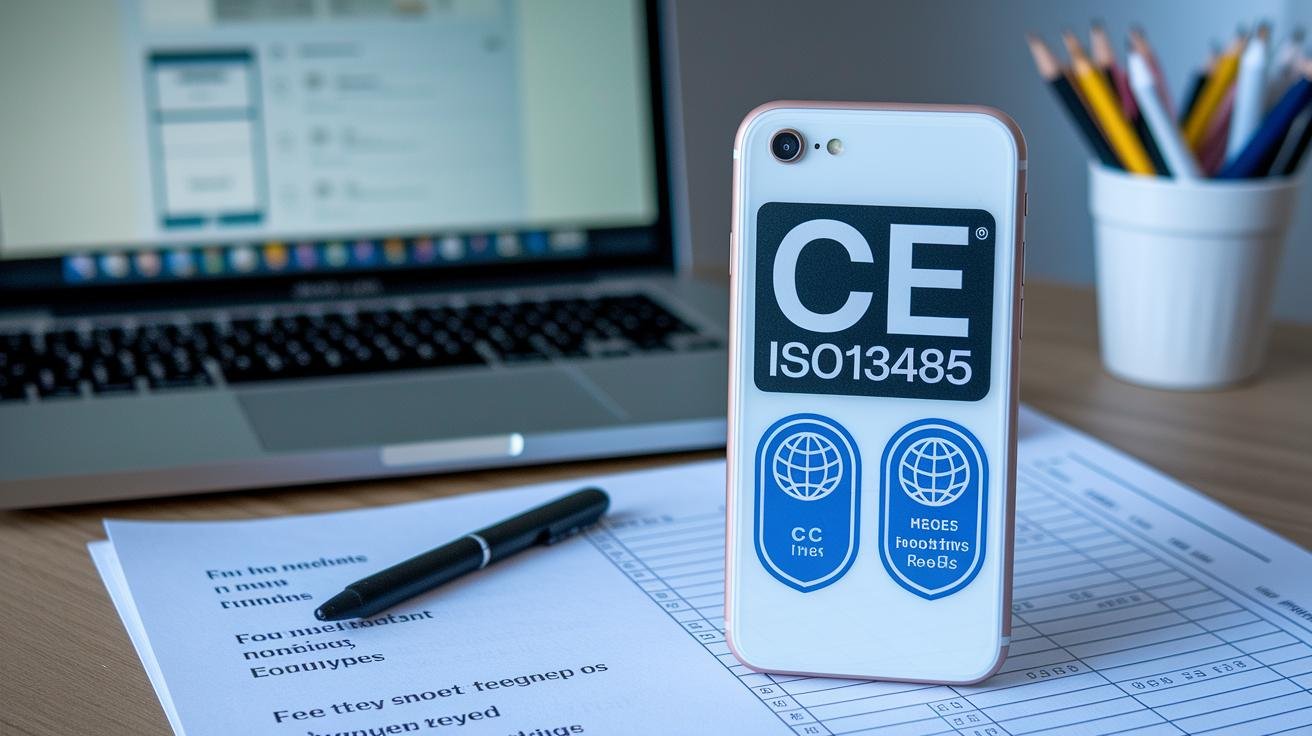
This device has the CE mark and was made under ISO 13485 quality standards, so it meets EU safety and manufacturing rules. It operates in the non-ionizing terahertz band (0.1-10 THz), which are very high-frequency electromagnetic waves, think of a gentle hum of energy rather than ionizing radiation. The unit was evaluated against applicable EU medical device directives.
Have you ever wondered what those labels actually mean?
- CE mark: shows conformity with EU safety, health, and environmental requirements.
- ISO 13485: a quality management system for companies that make medical devices.
- Regulatory status: operates in the non-ionizing 0.1-10 THz range; not cleared by the U.S. Food and Drug Administration (FDA) as a medical device.
So what does that mean for you? It’s sold and intended as wellness equipment in the U.S., not an FDA-cleared medical device. If you plan to use it in a clinic or for patient care, check local rules, facility policies, and any licensing requirements first.
Warranty and service are straightforward. The unit includes a 12-month limited warranty for defects in materials and workmanship, and optional warranty extensions may be available at purchase. To file a claim, use the manufacturer’s support portal and have your serial number, proof of purchase, and clear photos ready. If you need help, follow the contact steps in your user guide or reach out to the dealer you bought it from.
結語
In the action, we’ve started with safety-first checks , certified eyewear, clear space, emergency stop , then toured the main unit, wand and LCD, followed by unboxing, power hookup and first-run calibration.
You’ve learned control panel basics, calibration steps, session timing, positioning tips, cleaning and troubleshooting. Take a slow first session, watch the display, and make small intensity tweaks.
Use this terahertz therapy device user guide as your quick reference, and enjoy calmer, more recovered days.
常問問題
Prife manual, Prife International Marketing Plan PDF
The Prife manual and marketing plan PDF provide setup, safety, and promotional details; check Prife’s official support or an authorized distributor portal for verified specs, diagrams, and downloadable documentation.
Itera device reviews, Is iteracare device Legit, I Tera Care Device price, I tera machine uses, I Tera Therapy, iTera Premium hot air Blower
iTeraCare units are marketed for terahertz wellness therapy. Reviews vary, prices depend on model, and common uses include pain relief and circulation support; some models include a hot-air blower.
What are the disadvantages of terahertz therapy? What does terahertz do to your body? Is terahertz good for arthritis? Does terahertz help with pain?
Terahertz waves interact mainly with superficial tissues, producing gentle warming and possible cellular responses. Some users report relief for pain and arthritis, but drawbacks include limited long-term data, the need for eye protection with certain devices, and mixed clinical outcomes.